

 1 / 2
1 / 2
Legálisan kinyomtathatjuk neked
Kereskedelmi célra is kinyomtatható, ha feltüntetjük a tervezőt; a módosított tervet ugyanígy kell továbbadni.
Creative Commons Nevezd meg! – Így add tovább! (CC BY-SA) · A tervező nevét a rendelésednél is feltüntetjük.
Alkatrészek
2 / 2 kijelölveVedd ki, amelyik részre nincs szükséged. Mindegyik ugyanabból az anyagból és színből készül.
A tervező leírása
Eredeti nyelven, a Printables oldaláról.
8/6/2026: I received a report that the Tinkercad QR code generator is not working. You can still make your sign with an external QR code generator source. I suggest the following workaround:
-Use an external resource to generate a bitmap QR code (if you are an iPhone user my goto for this is the QR code generator that is available in the Shortcuts app, but there are plenty of web sites and other ways to do it)
-Convert the bitmap to SVG (I use the free Inkscape app for this)
-Import the SVG into Tinkercad
-Proceed from there as if you were working with the Tinkercad-generated QR code.
You can also use your QR code SVG as follows:
-Download the sign panel from Tinkercad as an STL
-Load the sign panel STL into Prusaslicer
-Right click the sign panel and select Add Part>Load...
-Load the QR code SVG as a part attached to the sign panel
-Resize and position the QR code as desired on the panel. The project uses 64x64mm for the QR code XY size. I suggest positioning the QR code about 0.4-0.8 mm above the panel to help ensure the gaps get filled when the QR code is printed after the filament change. If the QR code is too high, it might be difficult to decode the QR code when scanning it from an angle.
12/29/2022: I updated and simplified these instructions. This version uses the QR Code generator that is available in Tinkercad which greatly simplifies the process.
I also posted a version of the sign that uses embedded magnets: click here to view
---
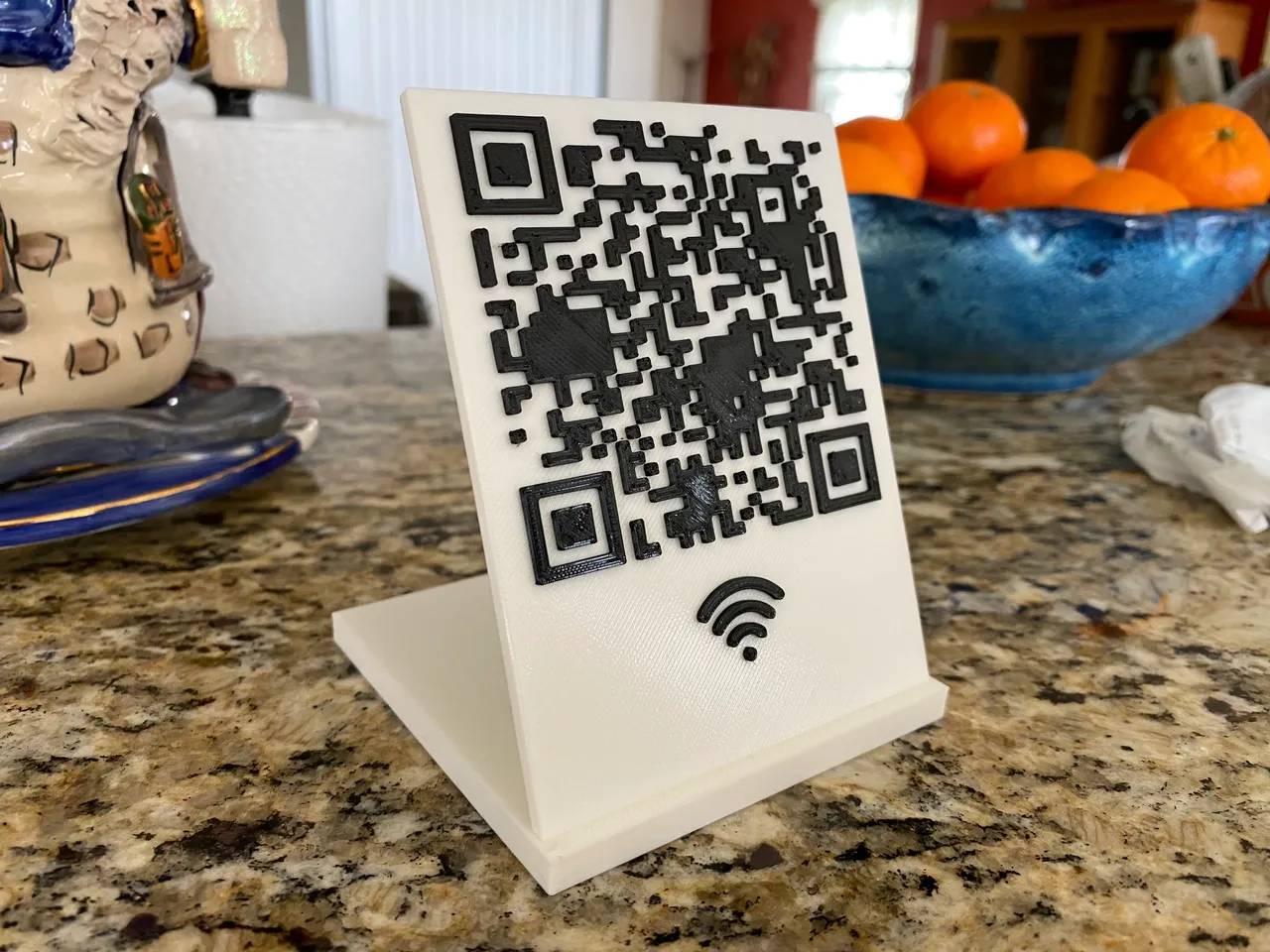
This is a simple and elegant WiFi sign with a stand that you can use to share your WiFi hotspot SSID and passcode with your guests. Most iOS and Android devices should be capable of interpreting the QR code and will connect to the WiFi network without manual selection of the hotspot or manual entry of the passcode.
Note that your WiFi SSID and passcode are available to anyone who has the QR code. This is not a major security risk but it is something that you should know.
To make your own sign:
Copy this Tinkercad file into your Tinkercad profile and open it as a project: https://www.tinkercad.com/things/d68DVV0rjMC
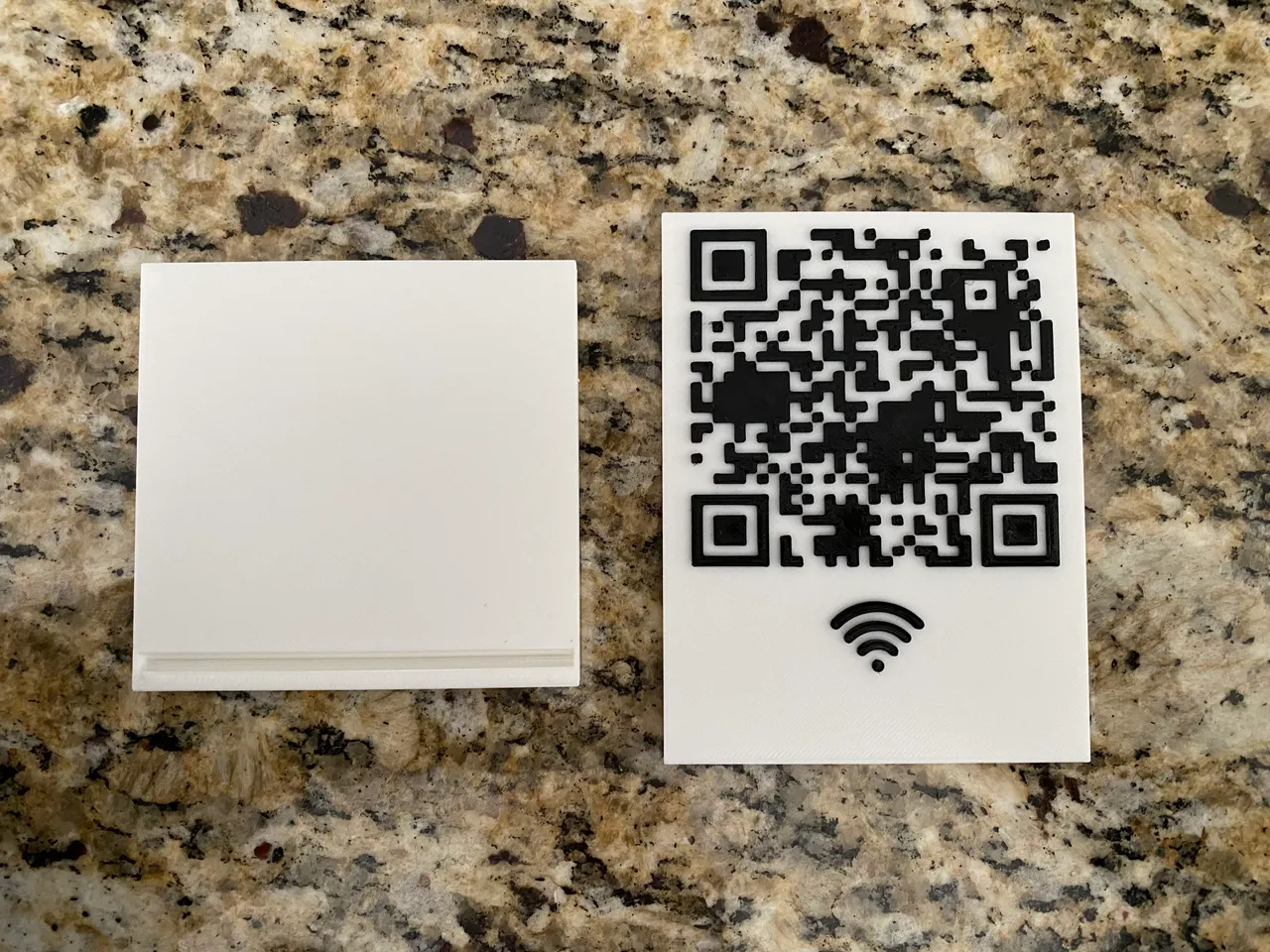
First, take a look at how the sign is designed. There are two objects: the sign and the stand. The stand is ready to go, but you will make some changes to the sign to customize it for your network before you export.
First, select the sign, then select the Ungroup button) to separate the QR code object from the sign pane;:
Select just the QR code object. In the Properties for the QR code object, enter your WiFi information into into the Text box using this format: WIFI:S:ssid;T:WPA;P:password;; where ssid is the SSID of your WiFi network and password is your network password. Note that both are case sensitive. For more information on how this works, see https://pocketables.com/2022/01/how-to-format-that-wifi-qr-code-in-plain-text.html or Google “WiFi QR code Format”.
The sign is configured to set the top of the QR code object two layers above the panel (0.4mm) which should be sufficient to eliminate the gaps that will appear in a single layer. You can go higher if you want a more pronounced emboss effect, but don't go too high or it will only be possible to scan the code while standing directly in front of the sign.
Test the code before slicing and printing by switching Tinkercad to a top down view, then put your phone into camera mode and point the camera at the QR code on the Tinkercad screen. You should be prompted to join the network specified in the QR code properties. After you test the code, select the sign and the QR code and press the Group button to group them together:
Export the sign and the stand from Tinkercad as separate STL files. Select the sign, then press the Export button. Ensure that The selected shape is selected under Include, and press the STL button. Select the stand and do the same (or just download the 3MF stand file from this page). This will give you two separate STL files, one for the sign and one the stand. The sign uses Prusaslicer's color change…
-Use an external resource to generate a bitmap QR code (if you are an iPhone user my goto for this is the QR code generator that is available in the Shortcuts app, but there are plenty of web sites and other ways to do it)
-Convert the bitmap to SVG (I use the free Inkscape app for this)
-Import the SVG into Tinkercad
-Proceed from there as if you were working with the Tinkercad-generated QR code.
You can also use your QR code SVG as follows:
-Download the sign panel from Tinkercad as an STL
-Load the sign panel STL into Prusaslicer
-Right click the sign panel and select Add Part>Load...
-Load the QR code SVG as a part attached to the sign panel
-Resize and position the QR code as desired on the panel. The project uses 64x64mm for the QR code XY size. I suggest positioning the QR code about 0.4-0.8 mm above the panel to help ensure the gaps get filled when the QR code is printed after the filament change. If the QR code is too high, it might be difficult to decode the QR code when scanning it from an angle.
12/29/2022: I updated and simplified these instructions. This version uses the QR Code generator that is available in Tinkercad which greatly simplifies the process.
I also posted a version of the sign that uses embedded magnets: click here to view
---
This is a simple and elegant WiFi sign with a stand that you can use to share your WiFi hotspot SSID and passcode with your guests. Most iOS and Android devices should be capable of interpreting the QR code and will connect to the WiFi network without manual selection of the hotspot or manual entry of the passcode.
Note that your WiFi SSID and passcode are available to anyone who has the QR code. This is not a major security risk but it is something that you should know.
To make your own sign:
Copy this Tinkercad file into your Tinkercad profile and open it as a project: https://www.tinkercad.com/things/d68DVV0rjMC
First, take a look at how the sign is designed. There are two objects: the sign and the stand. The stand is ready to go, but you will make some changes to the sign to customize it for your network before you export.
First, select the sign, then select the Ungroup button) to separate the QR code object from the sign pane;:
Select just the QR code object. In the Properties for the QR code object, enter your WiFi information into into the Text box using this format: WIFI:S:ssid;T:WPA;P:password;; where ssid is the SSID of your WiFi network and password is your network password. Note that both are case sensitive. For more information on how this works, see https://pocketables.com/2022/01/how-to-format-that-wifi-qr-code-in-plain-text.html or Google “WiFi QR code Format”.
The sign is configured to set the top of the QR code object two layers above the panel (0.4mm) which should be sufficient to eliminate the gaps that will appear in a single layer. You can go higher if you want a more pronounced emboss effect, but don't go too high or it will only be possible to scan the code while standing directly in front of the sign.
Test the code before slicing and printing by switching Tinkercad to a top down view, then put your phone into camera mode and point the camera at the QR code on the Tinkercad screen. You should be prompted to join the network specified in the QR code properties. After you test the code, select the sign and the QR code and press the Group button to group them together:
Export the sign and the stand from Tinkercad as separate STL files. Select the sign, then press the Export button. Ensure that The selected shape is selected under Include, and press the STL button. Select the stand and do the same (or just download the 3MF stand file from this page). This will give you two separate STL files, one for the sign and one the stand. The sign uses Prusaslicer's color change…
Mielőtt elmész
Küldd el magadnak
Küldünk egy linket, amivel 7 napig egy kattintással folytathatod – akár a telefonodon is. Ezen az eszközön külön kérés nélkül is megjegyezzük, hol tartasz.
A címedet csak erre az egy levélre használjuk: nem tároljuk, és nem küldünk rá hírlevelet. Adatkezelési tájékoztató